12 min read
How to Build a RAG Chatbot with Dhiya NPM
by Deep Parmar
CTO at Sunbots Innovations LLP | Director at Xwits Developers Pvt Ltd
What You'll Build
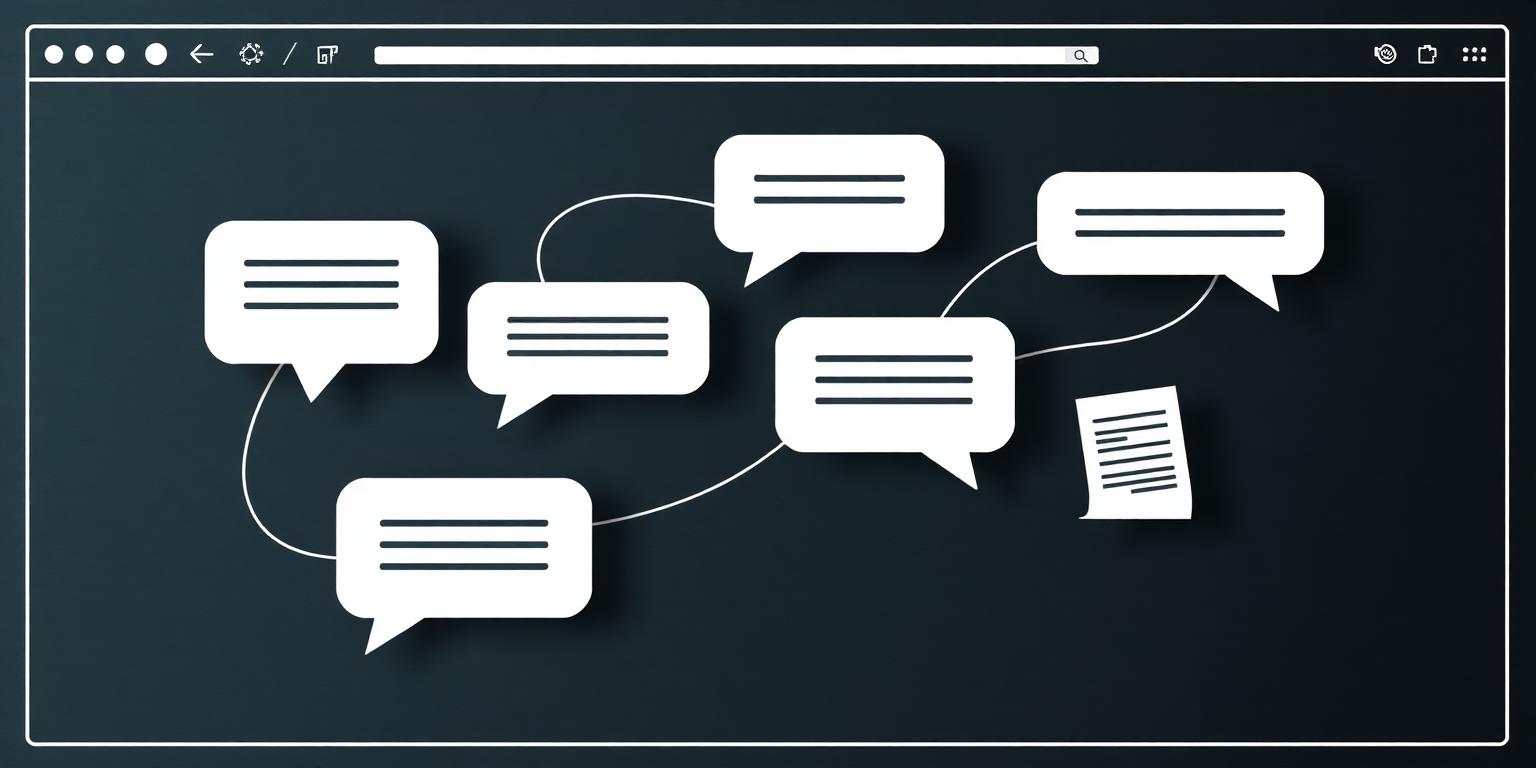
By the end of this tutorial, you'll have a working RAG chatbot that runs entirely in the browser. Users can load their own documents, ask questions about them, and get answers — with no server, no API key, and no recurring cost. The only infrastructure is an npm package and a browser.
This tutorial assumes you're comfortable with JavaScript/TypeScript and have used a frontend framework (React, Vue, or plain JS). No ML experience required.
Step 1: Installation
Install Dhiya NPM from the npm registry:
npm install dhiya-npmDhiya NPM ships as an ES module with TypeScript types. If you're using a bundler like Vite or webpack, no additional configuration is required. If you're using Next.js, add 'use client' to any component that imports Dhiya NPM — browser AI requires browser APIs that aren't available during server-side rendering.
Step 2: Initialize the RAG Engine
Create a new instance and initialize it. Initialization loads the embedding model into the browser's memory — this takes 1–3 seconds on first load (the model is cached after that):
import { DhiyaRAG } from 'dhiya-npm';

const rag = new DhiyaRAG({
  model: 'Xenova/all-MiniLM-L6-v2', // default; change for other embedding models
  storeName: 'my-knowledge-base',    // IndexedDB store name
  chunkSize: 512,                    // tokens per chunk
  chunkOverlap: 50,                  // overlap between chunks
});

await rag.initialize();
console.log('RAG ready:', rag.status); // 'ready'
The initialize() method downloads and caches the model using the Transformers.js pipeline. The model download is approximately 23MB for the default MiniLM model — subsequent page loads use the cached version and initialize in under 200ms.
Step 3: Load Your Documents
Add documents to the knowledge base. Dhiya NPM accepts plain text strings, and the library handles chunking and embedding:
// From a textarea or file input
const documentText = document.getElementById('document-input').value;

const result = await rag.addDocument({
  id: 'doc-1',
  content: documentText,
  metadata: { title: 'My Document', source: 'user-upload' }
});

console.log(`Embedded ${result.chunks} chunks in ${result.durationMs}ms`);
For PDF files, use a PDF parser like pdfjs-dist to extract text first, then pass the text to addDocument. Dhiya NPM doesn't bundle a PDF parser to keep the package size small.
Documents are stored in IndexedDB and persist across browser sessions. Call rag.getDocuments() to see what's in the knowledge base, and rag.removeDocument(id) to delete individual documents.
Step 4: Retrieve Relevant Context
Retrieve the most relevant document chunks for a given query:
const userQuestion = "What are the key findings of the report?";

const results = await rag.retrieve(userQuestion, {
  topK: 5,         // number of chunks to retrieve
  threshold: 0.3   // minimum similarity score (0-1)
});

// results is an array of { content, metadata, score }
results.forEach(r => {
  console.log(`Score: ${r.score.toFixed(3)} — ${r.content.slice(0, 100)}...`);
});
The retrieval step embeds the question using the same model used for document embedding, then computes cosine similarity against all stored embeddings. On a collection of 1,000 chunks, this takes approximately 5–15ms.
Step 5: Generate an Answer
Dhiya NPM handles retrieval; you handle generation. This separation lets you choose any LLM for the generation step — Chrome's built-in AI, a local model, or a cloud API:
// Build a prompt with retrieved context
const context = results.map(r => r.content).join('

---

');

const prompt = `Answer the question based on the following context.
If the answer is not in the context, say "I don't have enough information to answer that."

Context:
${context}

Question: ${userQuestion}
Answer:`;

// Option 1: Chrome's built-in AI (no API key required)
if (window.ai?.assistant) {
  const assistant = await window.ai.assistant.create();
  const answer = await assistant.prompt(prompt);
  displayAnswer(answer);
}

// Option 2: Any REST API (bring your own key)
const response = await fetch('/api/generate', {
  method: 'POST',
  body: JSON.stringify({ prompt }),
});
const { answer } = await response.json();
Step 6: Put It Together in React
Here's a minimal React component that wraps the full RAG flow:
import { useState, useEffect, useRef } from 'react';
import { DhiyaRAG } from 'dhiya-npm';

export function RAGChatbot() {
  const ragRef = useRef(null);
  const [status, setStatus] = useState('initializing');
  const [question, setQuestion] = useState('');
  const [answer, setAnswer] = useState('');

  useEffect(() => {
    const init = async () => {
      ragRef.current = new DhiyaRAG({ storeName: 'my-docs' });
      await ragRef.current.initialize();
      setStatus('ready');
    };
    init();
  }, []);

  const handleAsk = async () => {
    const results = await ragRef.current.retrieve(question);
    const context = results.map(r => r.content).join('

');
    // Send context + question to your LLM of choice
    setAnswer('Retrieved ' + results.length + ' relevant chunks.');
  };

  return (
    <div>
      <p>Status: {status}</p>
      <input value={question} onChange={e => setQuestion(e.target.value)} />
      <button onClick={handleAsk} disabled={status !== 'ready'}>Ask</button>
      <p>{answer}</p>
    </div>
  );
}
Full source code, examples, and advanced configuration are available in the Dhiya NPM documentation. See the Dhiya NPM introduction → for context on why the library was built and where it's headed.
Frequently Asked Questions
Quick answers about this topic — also indexed by AI search engines via FAQPage schema.
Share this article: